|
|
| | |
| On receipt of the Lexia 3 update CD 43, once the diagnostic tool is updated, the CAR will have to
activate each equipment Platform on which Lexia 3 software is installed.
For that, you will first have to make sure that :
-
Each machine is connected to the Internet when the activation procedure is started
-
You are in possession of the dealership's RRDI code
| |
| | |
|
|
|
| | |
|
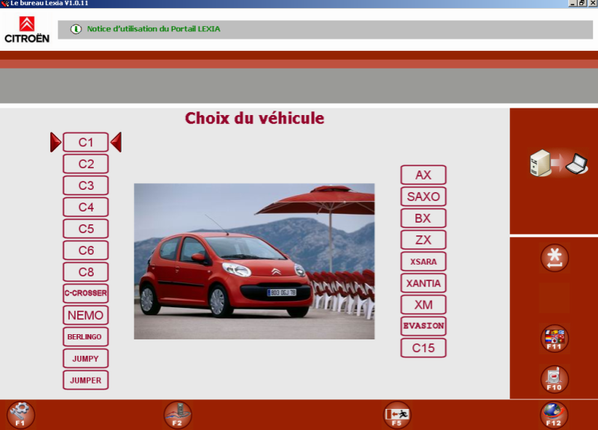
Start the LEXIA portal and click on F1 in order to access the menu "Management of the applications".
|
|
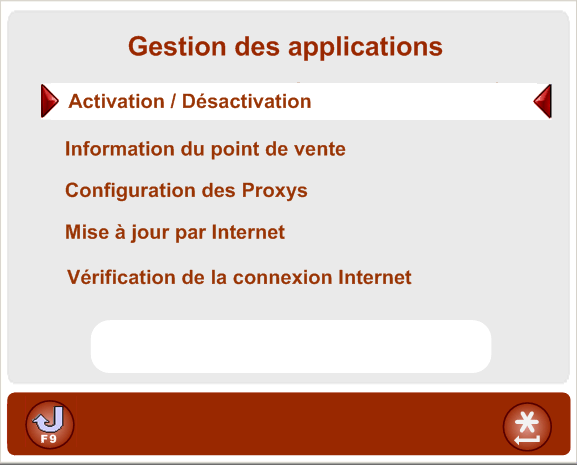
Select the menu "Activation/Deactivation" then validate by clicking on the button " ". ".
|
|
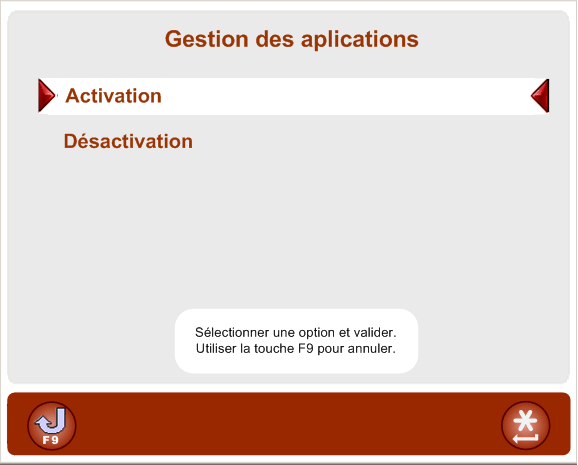
Select the menu "Activation" and validate by clicking on the button "".
|
|
| |
| | |
|
|
|
| | |
|
For the first automatic activation, the user has to enter his dealership's RRDI code as provided by Automobiles Citroën.
The LEXIA diagnostic tool will then connect to the PSA servers and automatically transfer information such as the PC identifier and the type of product in order to perform the activation.
Provided the dealership has at least one licence available, the server will automatically send back to the machine a confirmation of activation so that the diagnostic tool can immediately be used.
Note:
the dealership has to have as many licences as diagnostic tools.
For example, if the dealership has two diagnostic tools, he will have to have two licences, i.e. two subscriptions.
Note:
Automatic activation is a simple and rapid operation taking only a few minutes (approx. 5mn).
In the event of a failure or a fault with the Internet connection, you have the possibility to activate your diagnostic tool manually (see following paragraph) by calling the ACTIA Hotline which will guide you through the stages.
However, this last possibility is not recommended as it takes far longer and is more complex to perform.
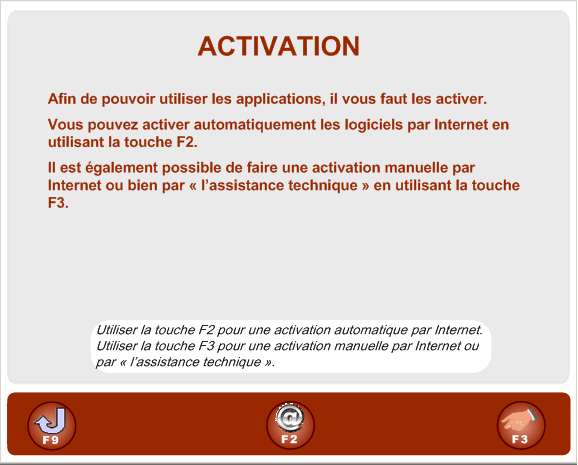
Click on F2 to activate your diagnostic tool automatically via the Internet.
|
|
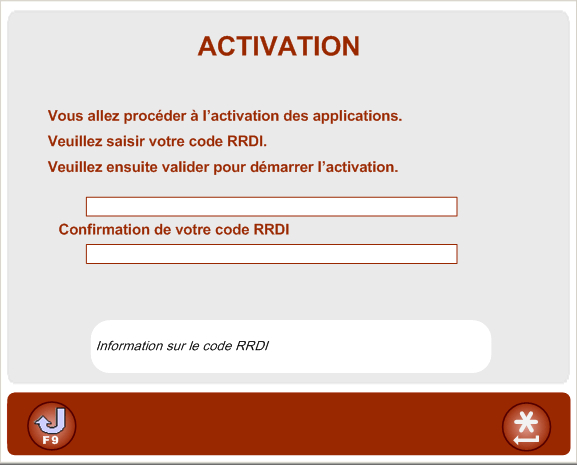
Enter the RRDI code in the first field, then confirm this same code in the second field.
Validate by clicking on button "".
|
|
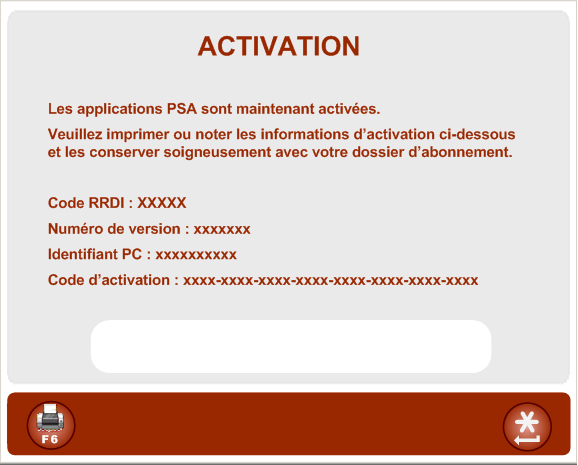
Note or record this information, then validate by clicking on button "" in order to terminate the activation procedure.
|
|
| |
| | |
|
|
|
| | |
|
In the event of a manual activation (for example :
absence of an internet connection) the user has to enter into the diagnostic tool his RRDI code and transmit it to the ACTIA Hotline in addition to the information provided by the diagnostic tool such as the PC identifier and the server request code.
When the activation has been performed on the WRS server by the ACTIA Hotline, the user then has to enter into the diagnostic tool the activation code which will have been provided to him to terminate the procedure and in order for him to be able to use his diagnostic tool.
Click on F3 to activate your diagnostic tool manually.
|
|
Enter the RRDI code in the first field, then confirm this same code in the second field.
Validate by clicking on button "".
|
|
Validate by clicking on button "".
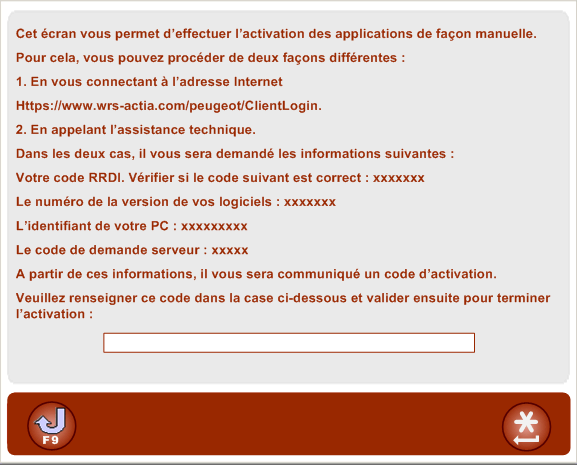
Contact the ACTIA Hotline in order to send your RRDI code, software version number, PC identifier and server request code.
The ACTIA Hotline will give you an activation code that you will have to enter into the screen shown opposite.
Validate by clicking on button "".
Note:
the activation code is a succession of blocks of alphanumeric characters separated by dashes.
|
|
Note or record this information, then validate by clicking on button "" in order to terminate the activation procedure.
|
|
| |
| | |
|
|
|
| | |
|
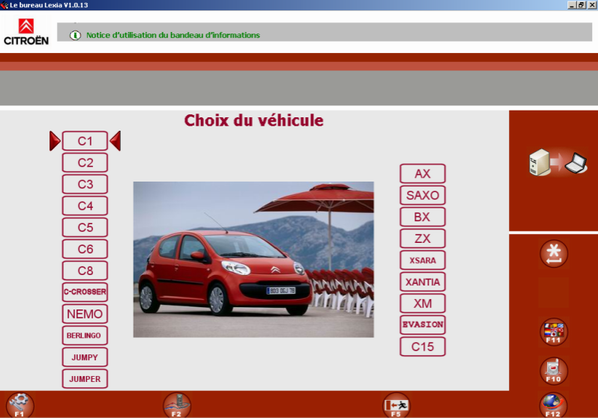
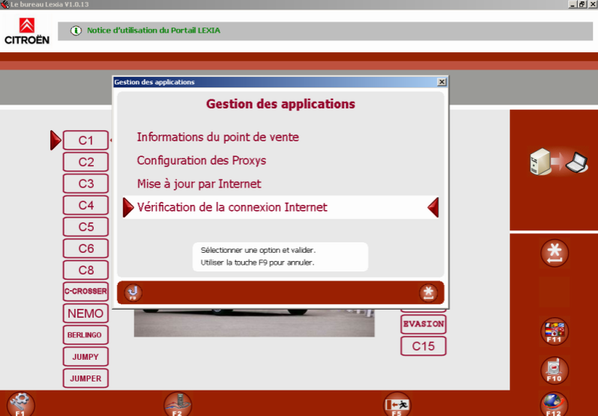
In the Lexia portal, click on F1 to access the menu "Management of applications".
|
|
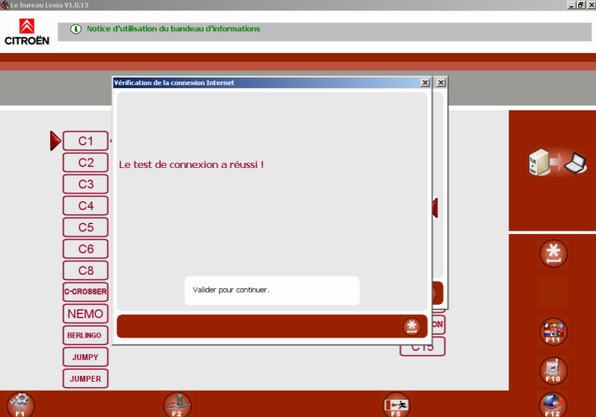
Select "Verification of the Internet connection", then validate by clicking on button "".
|
|
|
|
| |
| | |
|
|
|
| | |
|
Note:
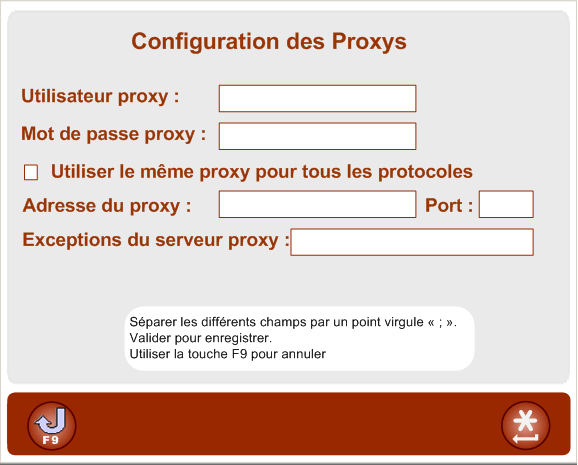
If your dealership uses a Proxy server for the Internet connection of your local IT network, you will have to configure the information from the Proxy.
Select "Configuration of Proxys", then validate by clicking on button "".
|
|
Enter the identifier and the password of the Proxy server as well as the address and the port of this server, then validate by clicking on button "".
|
|
| |
| | |
|
|
|
| | |
|
If you do not know the RRDI code attributed to your dealership, you can retrieve it in two ways.
Refer to the delivery label on your CD 43 update.
The dealership's RRDI code will be opposite the company name.
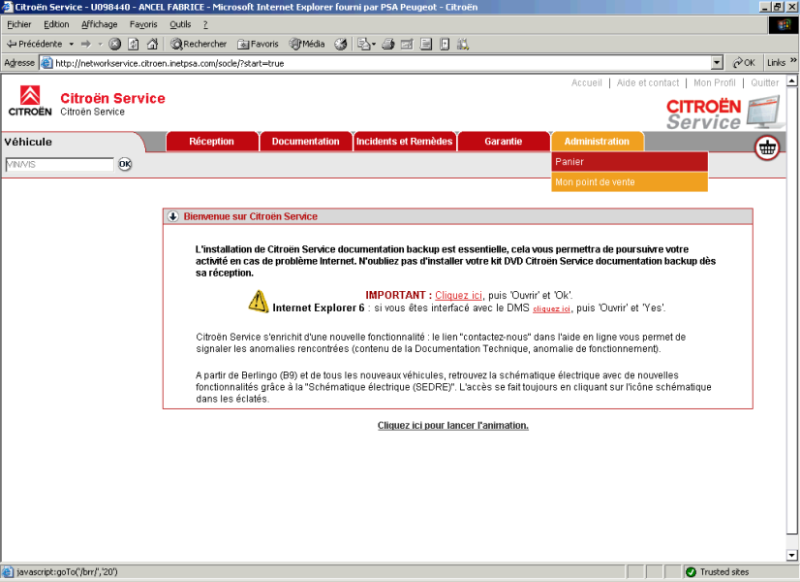
Consult the information on your dealership directly in Citroën Service, under the tab Administration, heading: "My dealership".
| |
| | |
|