|
|
| | |
| A new application is available:
The Lexia Portal.
This Portal is the point of entry to various functions of the Lexia tool.
The Portal records the information which is useful and essential for the Lexia application (in particular the identification of the vehicle), the information entered in the portal will be used throughout the session and it will not be necessary to enter it a second time (e.g.:
entering of the VIN when carrying out an ECU download).
In particular, it is possible:
-
to start diagnostic and repair sessions on a vehicle
-
to gain access to other services linked with the diagnostics, to the remote updates for the tool, to the assistance, ...
-
to configure certain parameters of the Lexia application, such as the language, the Dealership information, etc.
| |
| | |
|
|
|
| | |
|
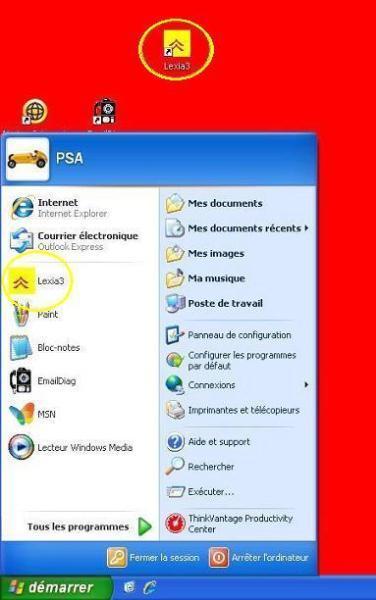
The LEXIA portal is started from the Start menu or from the Windows desktop (see icon and menu).
|
|
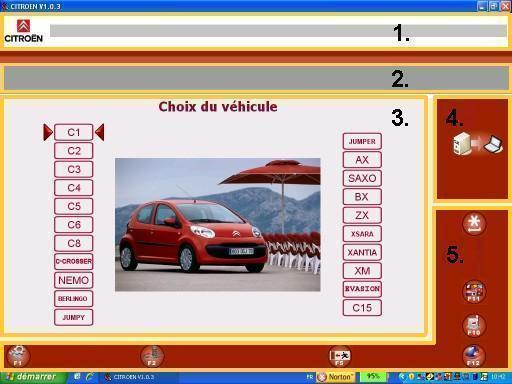
The main interface of this Portal contains the following four zones:
- an information banner (1.) displaying messages for the user.
These messages are opened through Internet Explorer
- the context bar (2.) which indicates the context of the current screen of the portal.
NB:the information shown here is the type of vehicle, the sub-type and the VIN.
- the work zone (3.)
- the updates module (4.)
- the control bar (5.) containing the buttons which start the various functions and permit navigation within the portal.
|
|
The buttons on the right-hand and lower banner allow you to navigate within the Lexia Portal:
Description
|
Button
| Keyboard key
|
Confirmation / OK
|

| Enter
|
Back /
Cancel
|

| F9
|
Exit Portal
|

| F5
|
The buttons on the right-hand and lower banner allow you to start the functions within the Lexia Portal:
Description
|
Button
| Keyboard key
|
Updating
|

| None
|
Application management
|

| F1
|
Physical measurement
|

| F2
|
Language selection
|

| F11
|
Assistance
|

| F10
|
Internet links
|

| F12
|
The information banner:
Located at the top of the Portal, this permits the displaying of 3 categories of message, which can be identified by their colour:
- The information messages:
for example, the user guides to learn how to use certain functions of the tool.
These messages appear in white.
- The alert messages:
for example, to inform you that you are using an obsolete version of an application.
These messages appear in orange.
- The warning messages:
for example, an assistance request has not been sent.
These messages appear in red to attract attention.
| 
|
The messages are displayed one after the other with a pause of a few seconds between each one.
Passing the mouse over the banner stops the scrolling so that you can read the messages at your own pace.
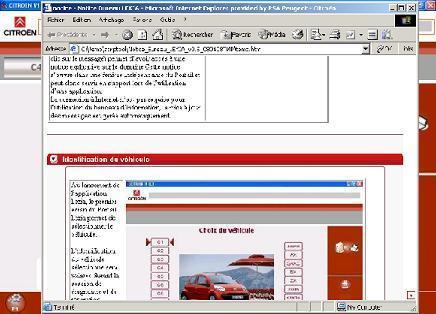
Selecting a message (by clicking on it) provides access to a guide explaining the domain.
This guide opens in a window which is independent of the Portal and therefore can be used for reference while using an application (see image).
Connection to the Internet is not required in order to use the information banner, the messages are updated automatically.
| 
|
| |
| | |
|
|
|
| | |
|
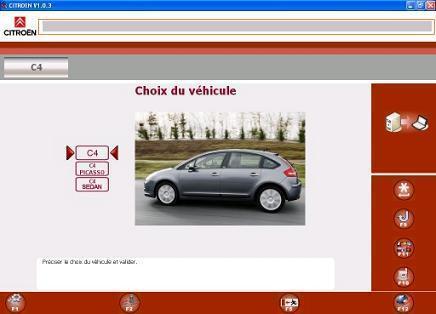
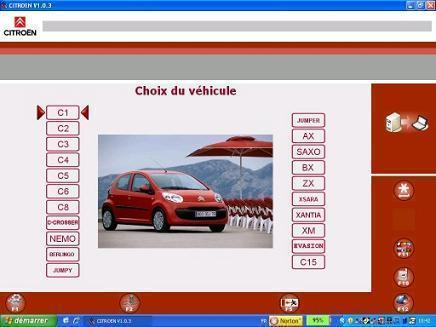
When the Lexia application is started, the first screen of the Lexia Portal permits selection of the vehicle.
The identification of the vehicle selected will be used during the diagnostic and repair session.
|
|
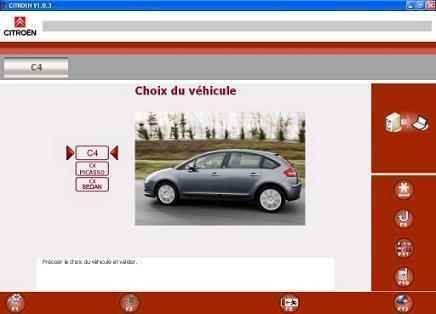
When the vehicle is selected and depending on the vehicle, a choice may be offered to determine the variant required.
|
|
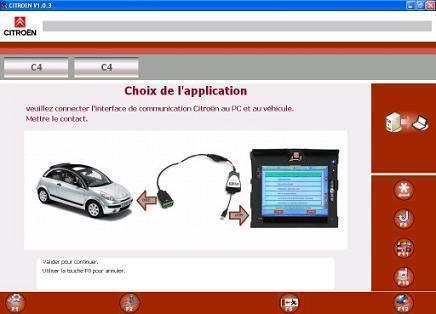
An intermediate screen may appear to prompt you to connect the communication interface to the vehicle.
Confirm this screen, once the connection has been made.
|
|
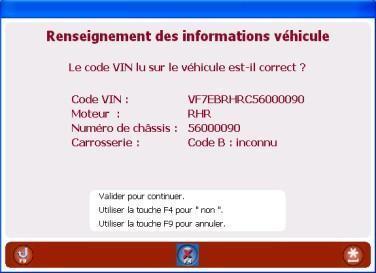
The tool tries to retrieve the vehicle's VIN automatically.
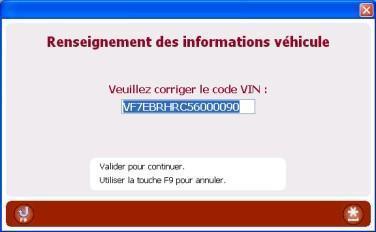
Click on confirm to confirm the VIN or on F4 to change it.
|
|
This screen allows you to change the VIN.
|
|
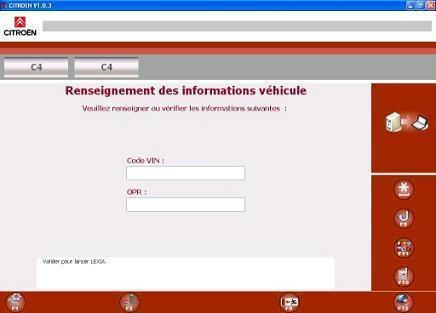
If it has not been possible to read the VIN automatically, a screen asks you to enter it.
This screen also invites you to the enter the RPO N°.
|
|
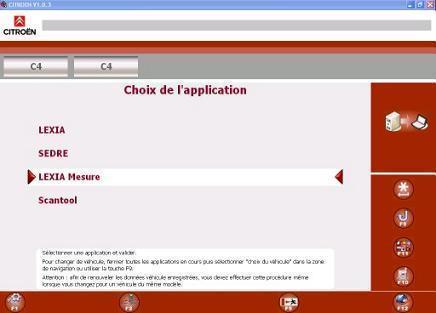
Selecting the vehicle permits access to the choice of applications to be started menu.
This menu contains the following applications:
LEXIA
SEDRE
PHYSICAL MEASUREMENT
SCANTOOL
|
|
| |
| | |
|
|
|
| | |
| The Internet updates module is available from the Portal via the icon "", as well as from the "applications management" menu.
The updates are very important in order to ensure that the tool has access to the latest vehicle data and the latest functions or anomaly corrections.
Every day, when the Portal is started for the first time, a window invites you to search for new updates.
First, the Internet connection is checked.
If the connection is active, the Portal searches for Updates.
If no updates are available, the Portal informs you of this.
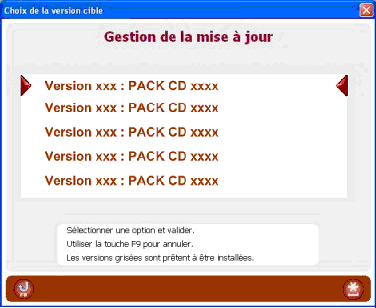
When updates are available, a screen lists them.
The most recent update versions are displayed at the top of the list.
Selecting the most recent update version automatically selects the previous versions.
|
|
When you have made your selection, the Portal starts the updating procedure.
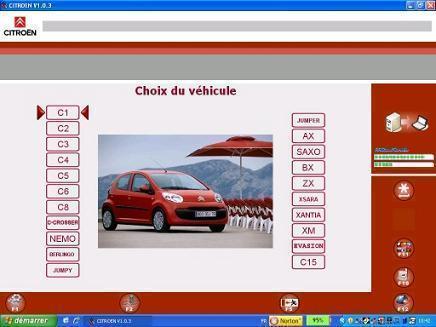
The top right part of the Portal indicates the updates download status.
|
|
Downloading the updates
The upper bar indicates the overall progress of your update downloads
.
The lower bar indicates the progress of one of the updates currently being downloaded.
The updates will be downloaded one after the other, without any further action on the part of the user.
|
|
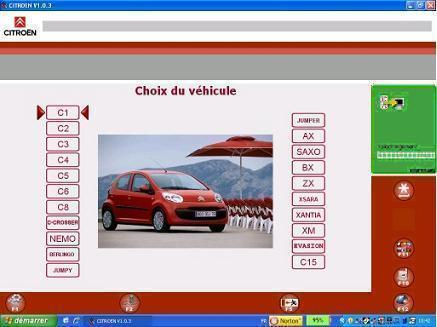
When the downloading zone changes to green, this indicates that all of the updates are ready to be installed.
To do this, simply stop the Portal then re-start it.
When it starts, the Portal will inform you that it is updating the application.
Click on "more details" to find out what to do next.
|
|
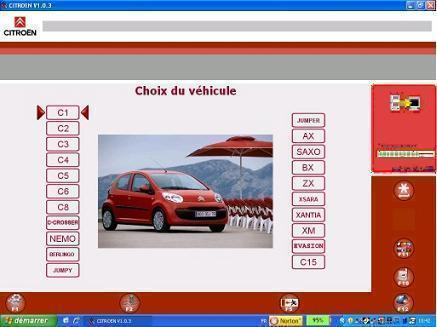
If the downloading zone changes to red, this indicates that the download has been interrupted.
This will usually be due to loss of the Internet connection during the update.
You can click on "more details" to find out what you must do to continue the download.
|
|
The tool remains accessible during the updates but they will not take effect until the download has finished and the Portal has been re-started.
| |
| | |
|
|
|
| | |
|
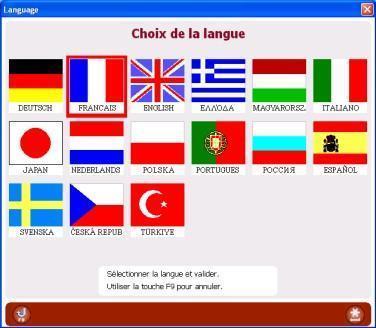
The buttonon the control bar permits access to a screen on which you can select the language.
Consequently, this option is no longer present on the LEXIA tool configuration menu.
The languages available are represented by their flag and description.
|
|
| |
| | |
|
|
|
| | |
|
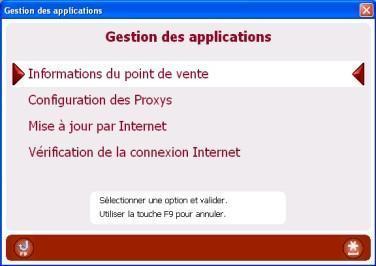
The buttonwhich can be accessed from the Portal permits access to the "Applications management" menu.
This menu contains the points of entry to 4 functions:
|
|
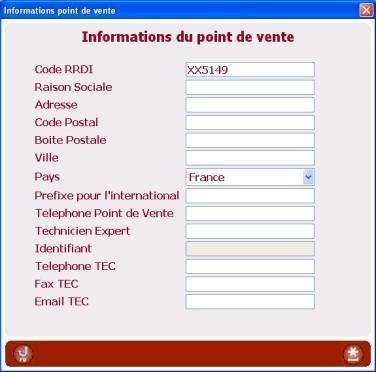
Dealership information:
This interface allows you to enter the information concerning your dealership.
NOTE:
The RAC code (sagai code) currently entered in your LEXIA tool must be entered in the RRDI code field.
|
|
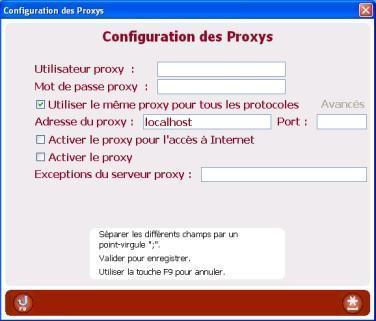
Configuration of the proxys:
If your network connection uses a proxy server.
This screen allows you to configure the parameters relating to your proxy.
The option is not used very often but may be necessary in order to adapt the PC to the local network configuration, to permit connection to the Internet.
|
|
Updating via the Internet:
This screen permits access to the "Updating via the Internet" function, described above.
|
See
section Updating via
the Internet
|
Internet connection check:
The Internet connection check option allows you to test your Internet connection.
NB:
If you encounter any problems using an application, check your network connection and your Internet connection before contacting the assistance.
|
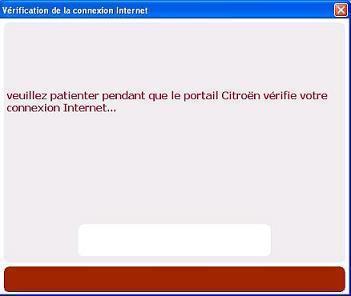
Connection check in progress
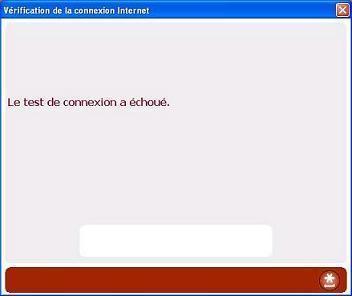
Connection cannot be found
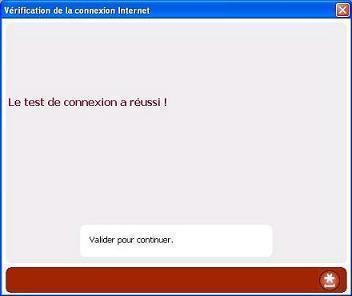
Connection active
|
| |
| | |
|
|
|
| | |
|
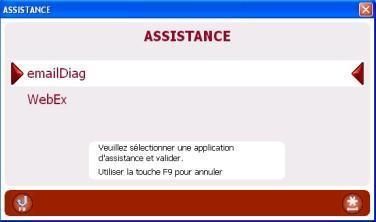
This menu, which can be accessed via the F10 button, permits access to the EmailDiag function for assistance requests and the Webex function for remote control of the application.
|
|
| |
| | |
|
|
|
| | |
|
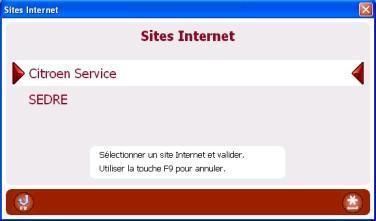
The buttonon the Portal permits access to the Citroën Service and Sedre link.
|
|
| |
| | |
|
|
|
| | |
| The point of entrypermits direct access to the physical measurement function in the LEXIA application.
| |
| | |
|